How do I create a Canva template pack?
Note: The Canva Enterprise integration requires the Cloze Enterprise plan.
This article is for marketing teams at real estate brokerages using Canva Enterprise who want their approved brand templates to fill themselves with listing details, without copy-paste. With Canva’s Data Autofill, you define the fields in your templates, and Cloze serves as the trusted source of listing data (photos, price, address, agent info). When an agent taps on Send to Canva in Cloze, those details flow straight into your templates so flyers, postcards, and social posts open in Canva already on-brand and ready for a quick polish.
Several Canva templates can be generated at once from Cloze by grouping templates into packs.
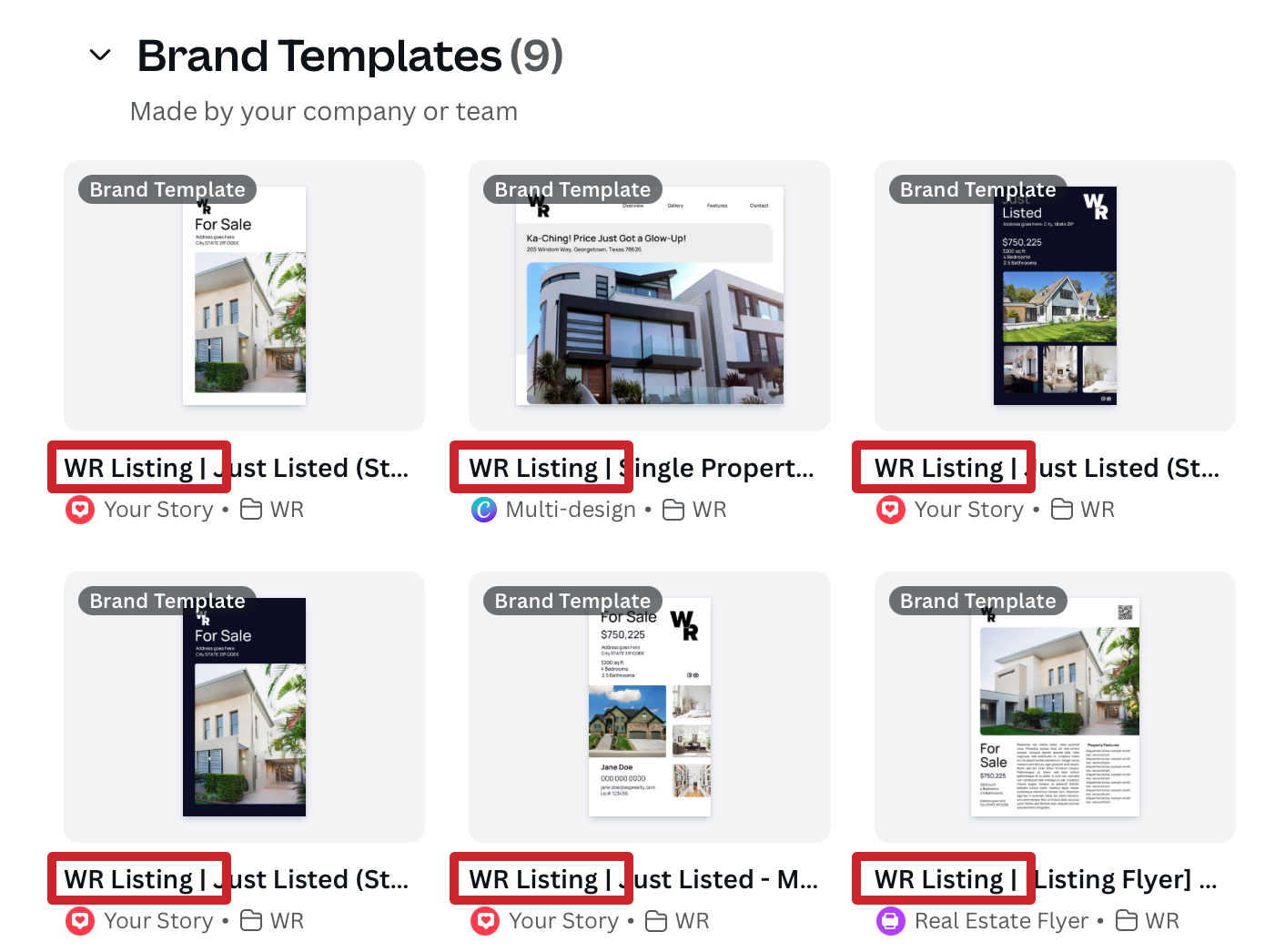
To create a pack, add a pack name (e.g. Luxury Listings) with a vertical bar ( | ) before the template name in Canva. In the example, below the pack name is "WR Listing" and the "Canva template name is Just Listed (Story/Navy)".

In this example:
- Template pack name: WR Listing
- Divider between pack name and template name: |
- Canva template name: Just Listed (Story/Navy).
For example, to create a template pack called “WR Listing” you would add “WR Listing | “ in front of each template you wish to include in the pack. The template pack below has 9 templates .

Any Canva template that includes "WR Listing |" is grouped in the "WR Listing" pack.
For example:
- WR Listing | Just Listed (Story Carousel)
- WR Listing | Single Property Website Template
- WR Listing | Just Listed (Story/Navy)
- WR Listing | Just Listed (Story Video)
- WR Listing | [any other name]