
How do I create a new API Key?
1.) In Cloze:
- Tap on More in the lower left on your computer (cloze.com).
- Select Settings.
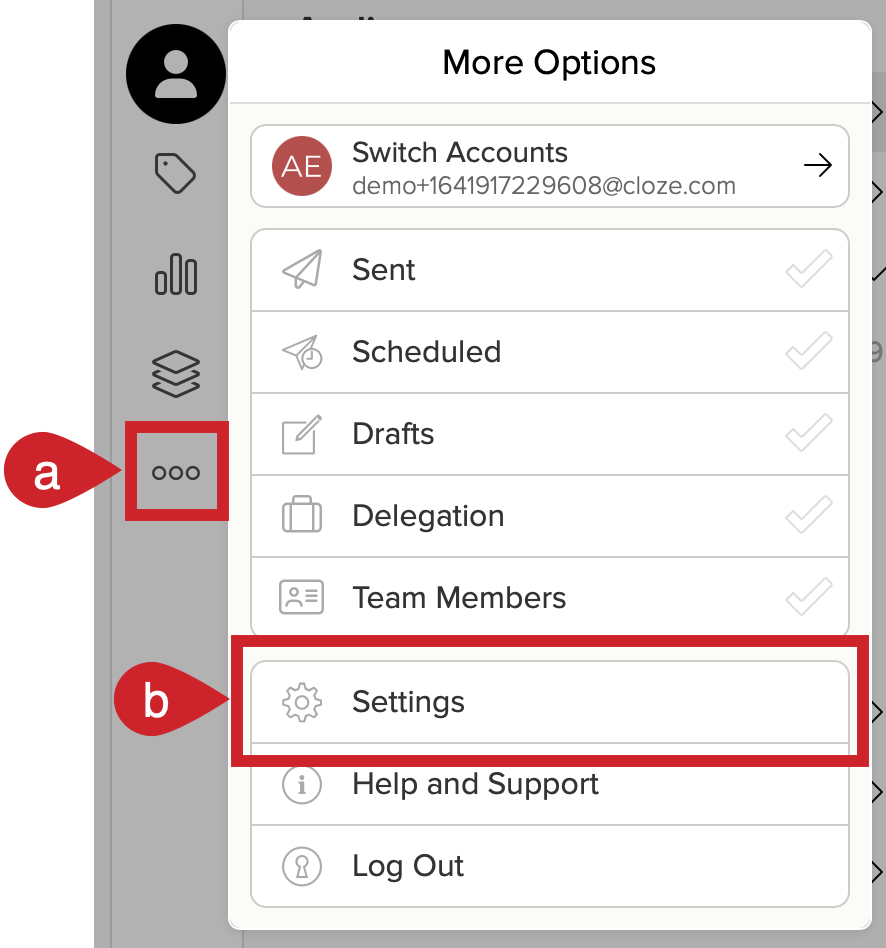
- Tap on More in the bottom right of the Cloze mobile app.
- Select Settings.


Business Gold or Lower:
1.) After tapping Add, select one of the options listed.

Note: If you select "3rd Party App Integration", you will see the error: For your security and privacy, 3rd party app vendors must use Oauth2 not API keys. Please have the vendor contact support@cloze.com to configure their integration.

2.) After selecting an option, the next screen will ask for the name of the key. Enter a name and then tap Save.

3.) A pop-up will appear with the API key.

Business Platinum or higher:
On Platinum and higher, we make it easy to create different types of keys (regular or a key for importing files via email).

Limited keys (Zapier, CardDAV, Email File Import) — just let users name them, no permission controls.
Advanced keys — let users restrict capabilities via "Permissions" (with "Scopes" as the technical synonym for OAuth2 keys).
Depending on the API and what you needed, there are different levels of permissions that you can enable (see a, b, c below).
Note: "Submit Form" is only for Cloze Enterprise subscribers.

If you turn on "Read Content", you will see a pop-up to complete access.

For full MCP capabilities, a user would leave the defaults on, toggle on MCP and toggle on Read Content (e.g., to ask questions like "summarize my recent discussions with Dave Varenos")