How to Set Up an Open House (Open House App)
Note: The Cloze Open House App is available on the Cloze Enterprise plan. This feature is in Beta.
The Cloze Open House App helps you streamline your open house experience by making it easy for buyers to check in while automatically capturing and organizing lead information in Cloze. What happens in Cloze when someone checks in?
To set up an open house, all you need is the last date of the open house(s) that you will be using the app and materials for. You can use the same Open House App materials and check-in link for multiple open houses, so be sure to select a date range that includes all upcoming events you plan to use the app for.
This date determines how long your check-in links and QR codes will remain active. After the date passes, the links automatically expire and are no longer accessible. This helps keep your open house check-in experience secure and prevents old links from remaining active indefinitely.
There are two modes:
Set up an Open House
1.) On the properties tab:
- Tap on a property to select it.
- Confirm the property is in a Sale Listing segment.

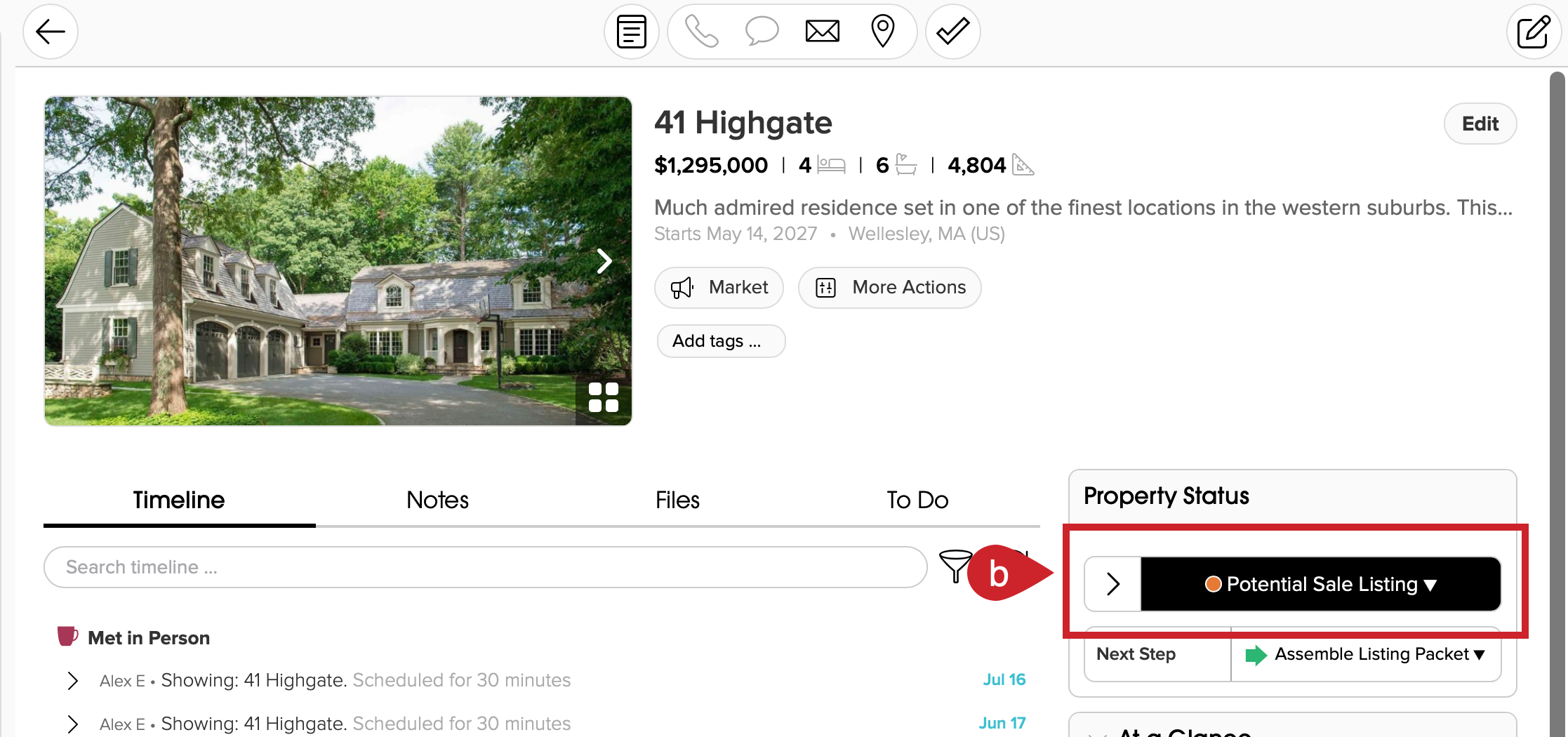
- Tap on Market beneath the name of the property.
- Select Prepare Open House.

2.) Add the Date of the Last Open House
You can use the same Open House App materials and check-in link for multiple open houses, so be sure to select a date range that includes all upcoming events you plan to use the app for.
- Add the date for the last open house.
- Tap on Next.

Printing the Open House Materials
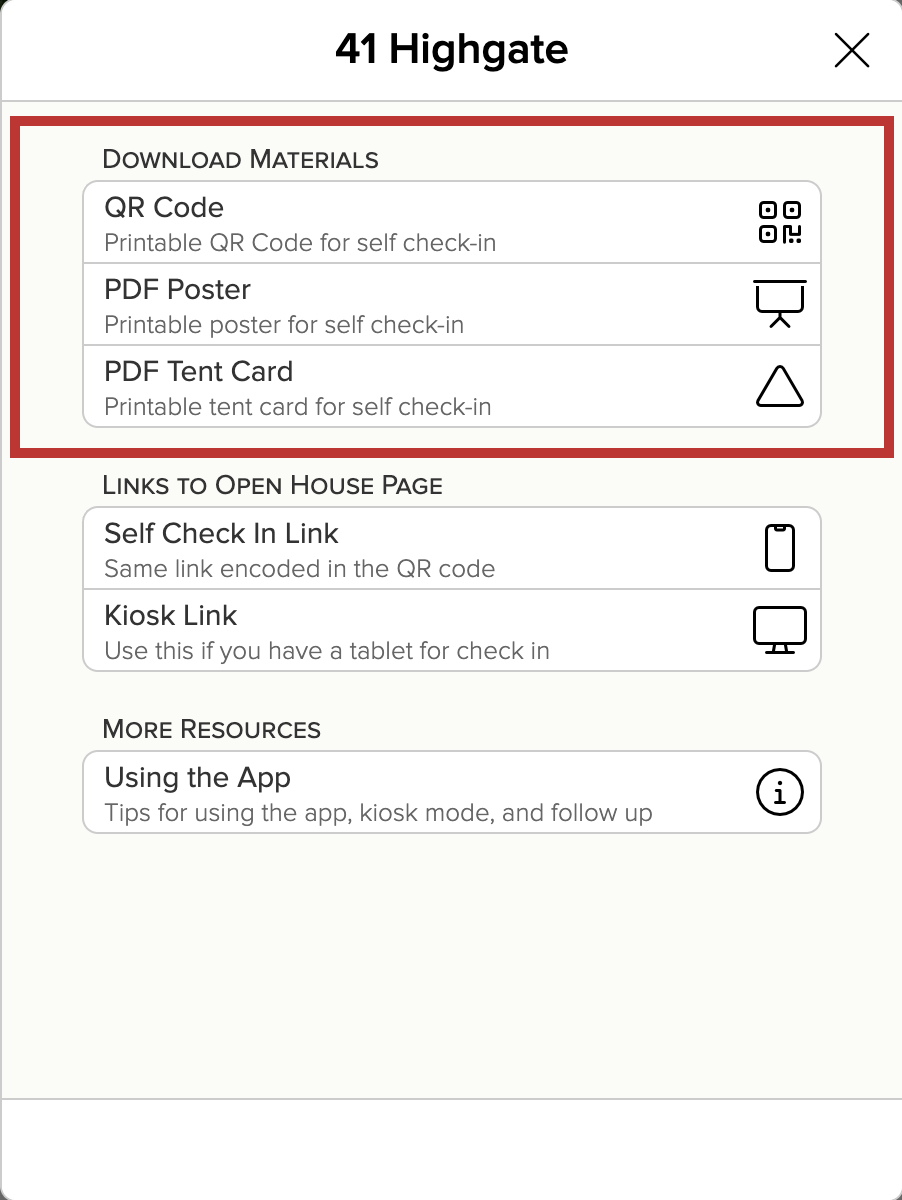
After adding in the date of the last open house, you will be able to download materials to help you with the open house. The materials you can download are:
- Standalone QR Code. You'd use this if you want to embed that QR Code on a listing sheet that you'll have sitting on the counter for clients to take with them.
- Printable Poster. Print this and hang it on the wall, on a door, or in a brochure holder that clients can scan.
- Printable Tent Card. Print this on card stock and fold it in half - the same details are on either side.
Note: You can reuse the same printouts across multiple open houses as long as the end date is set far enough in the future. If your open house schedule changes, all you need to do is update the end date and the existing QR codes and links will continue to work because the URL stays the same.
Using Self Service Check-In
Self Service Check-In allows buyers to scan a QR code using their own mobile device to submit their information during an open house. This option works well if you want a simple, low-touch check-in experience while still collecting valuable buyer feedback after the showing.
All QR codes generated through the Open House App direct buyers to the Self Service Check-In page. You can display these QR codes using the printable materials.
After checking in, buyers are taken to a second page designed for post-visit feedback. Buyers can leave this page open on their phone while touring the property and easily submit feedback as they leave the open house.
What information is captured?
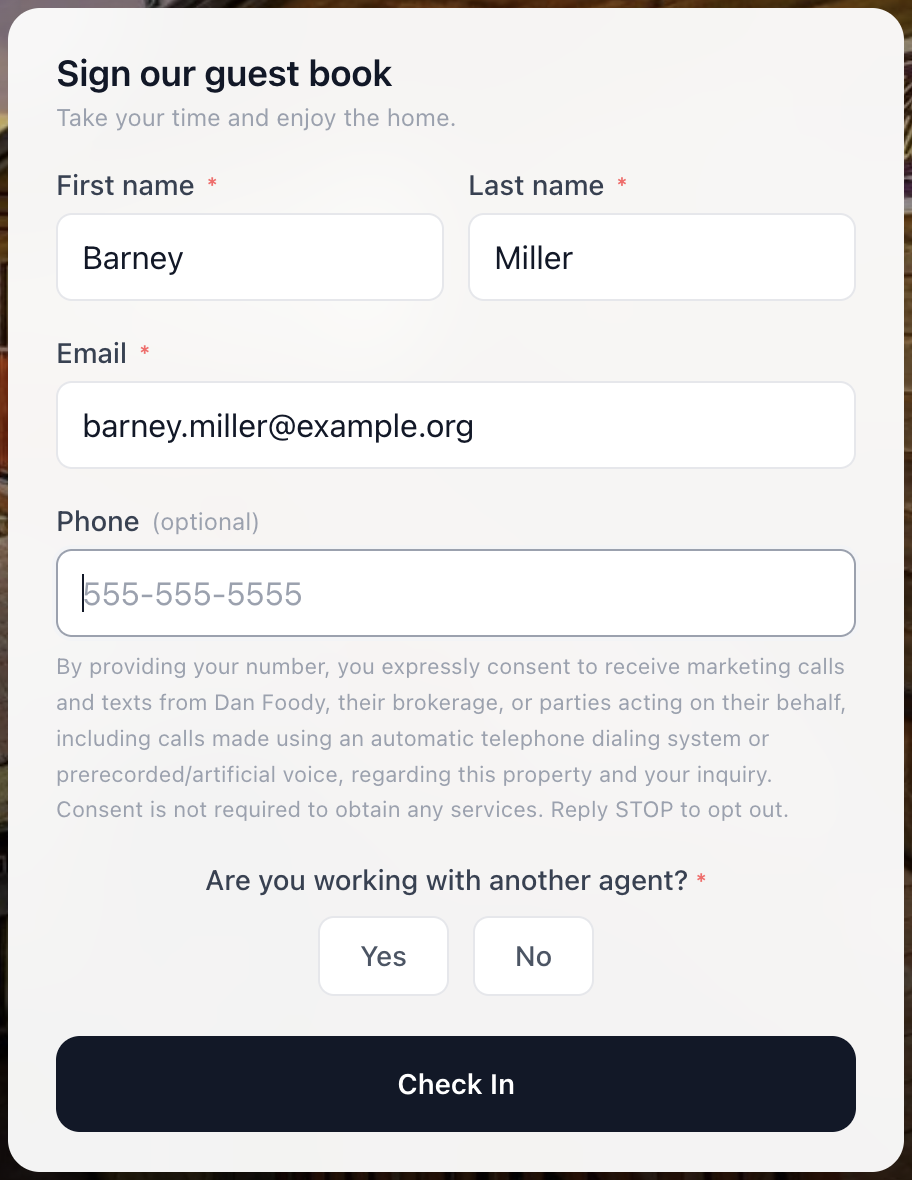
- First and Last Name
- Email address
- Phone number
- Are they working with another agent?
- Property visited
- Date and time of check-in
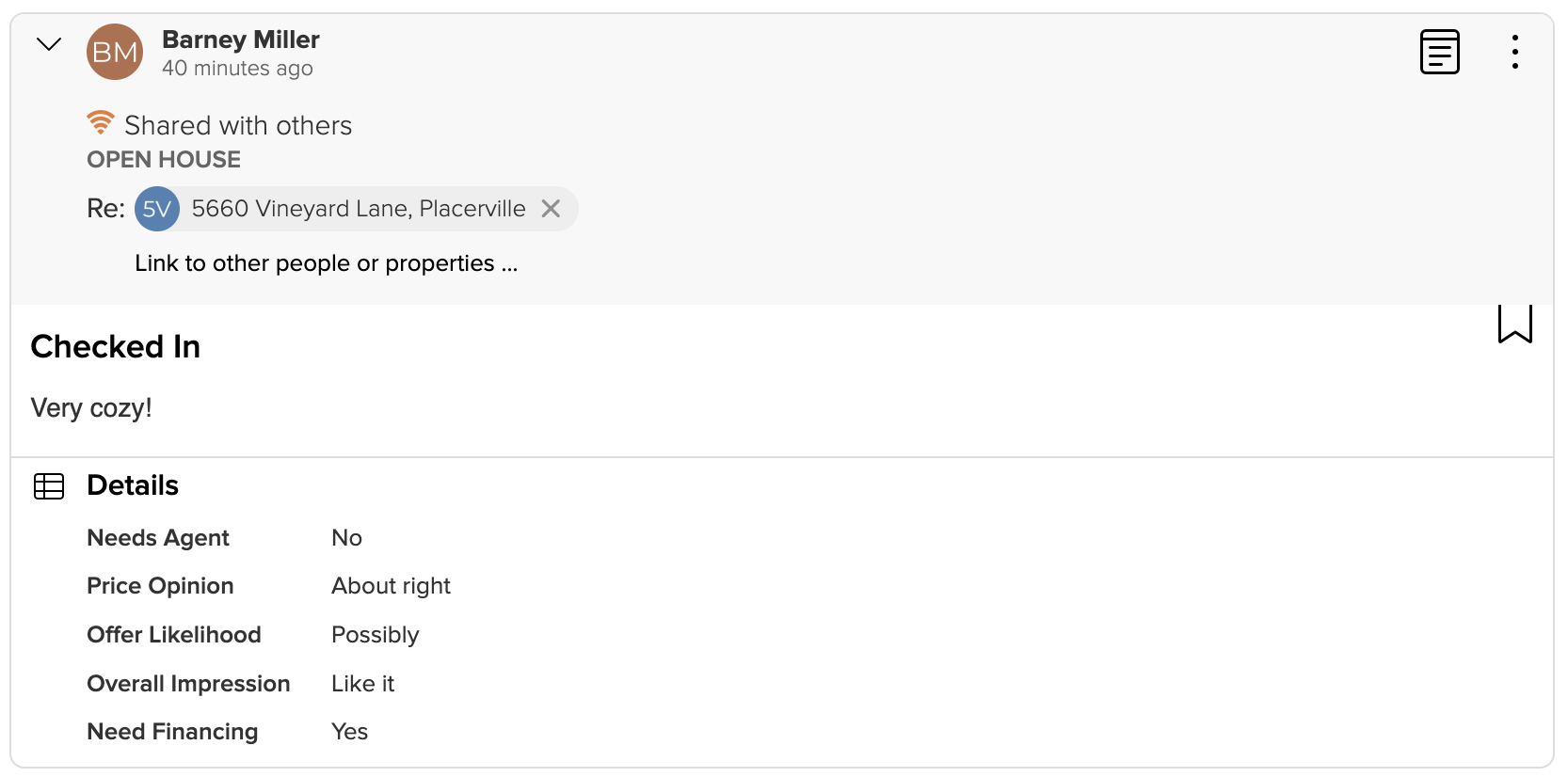
- Buyer feedback such as how the price feels, overall impression, would they like to make an offer, and any additional comments (Self Service mode only; not available in Kiosk mode)
Check In
Once a user scans the QR code, they are brought to a check in page where they will be prompted to sign the guest book and check in.
IMPORTANT: These form submissions include several built-in security protections to help reduce spam and fake sign-ins. The system automatically checks for things like bots, suspicious network activity (including some VPNs and Tor connections), and invalid contact information.
To help ensure lead quality, submitted email addresses and phone numbers must be valid. For testing purposes, you can use:
- Email addresses ending in
@example.comor@example.org - Demo phone numbers such as
650-555-1212or650-555-01xx
Buyer Feedback (Self Service Check-In Only)
After tapping on Check In, the next page asks for buyer feedback. The idea is that the buyer can leave this page up on their phone and, when they leave the open house, they can provide feedback to the you.
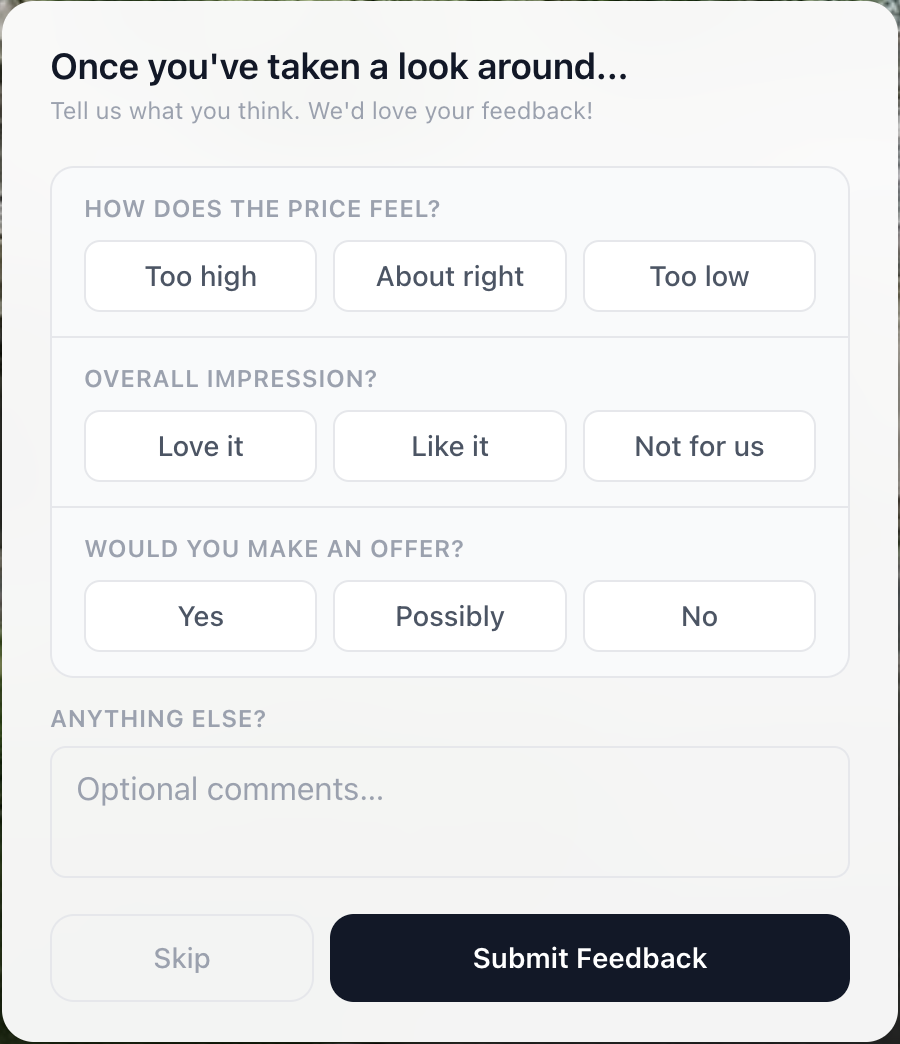
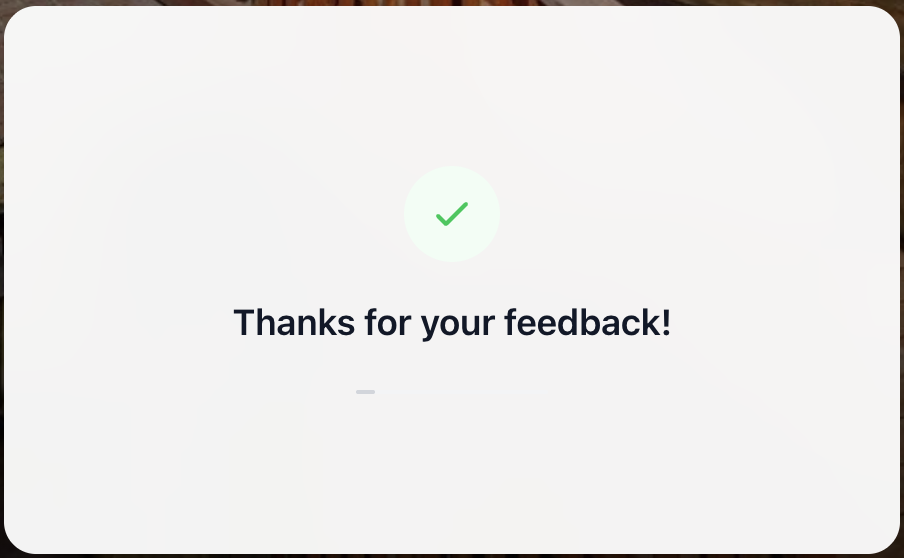
After tapping "Submit Feedback", users will momentarily see the "Thanks for your feedback!" screen before being redirected to the listing on your website. The idea is that people don't close tabs on their mobile phone browser so when they next go back to browse a web page, they'll be reminded again of the house they visited.
Note: At this time, we do not currently have a way to do automation around the responses people give in the form (e.g. if someone chose "yes, would like to make an offer" we can't currently send them down a separate path).
Using Kiosk Mode
Kiosk Mode is designed for situations where you want to leave an iPad, tablet, or laptop open at the check-in page during the event. Instead of scanning a QR code, buyers enter their information directly on the device you provide. This creates a centralized check-in station and can help encourage every visitor to sign in as they arrive.
If you are not comfortable with someone using your tablet, please see Advanced Kiosk Mode.
Information captured in Kiosk mode during check-in
- First and Last Name
- Email address
- Phone number
- Are they working with another agent?
- Property visited
- Date and time of check-in
Check In
Buyers will enter their information into your iPad, tablet, or laptop directly.
After tapping "Check In", users immediately see "Thanks for your feedback!" before being redirected back to an empty "Sign our guest book" page.
IMPORTANT: These form submissions include several built-in security protections to help reduce spam and fake sign-ins. The system automatically checks for things like bots, suspicious network activity (including some VPNs and Tor connections), and invalid contact information.
To help ensure lead quality, submitted email addresses and phone numbers must be valid. For testing purposes, you can use:
- Email addresses ending in
@example.comor@example.org - Demo phone numbers such as
650-555-1212or650-555-01xx
What happens in Cloze when someone checks in?
Check In (Self Service and Kiosk Modes)
When "Check In" is pressed, this does a few things:
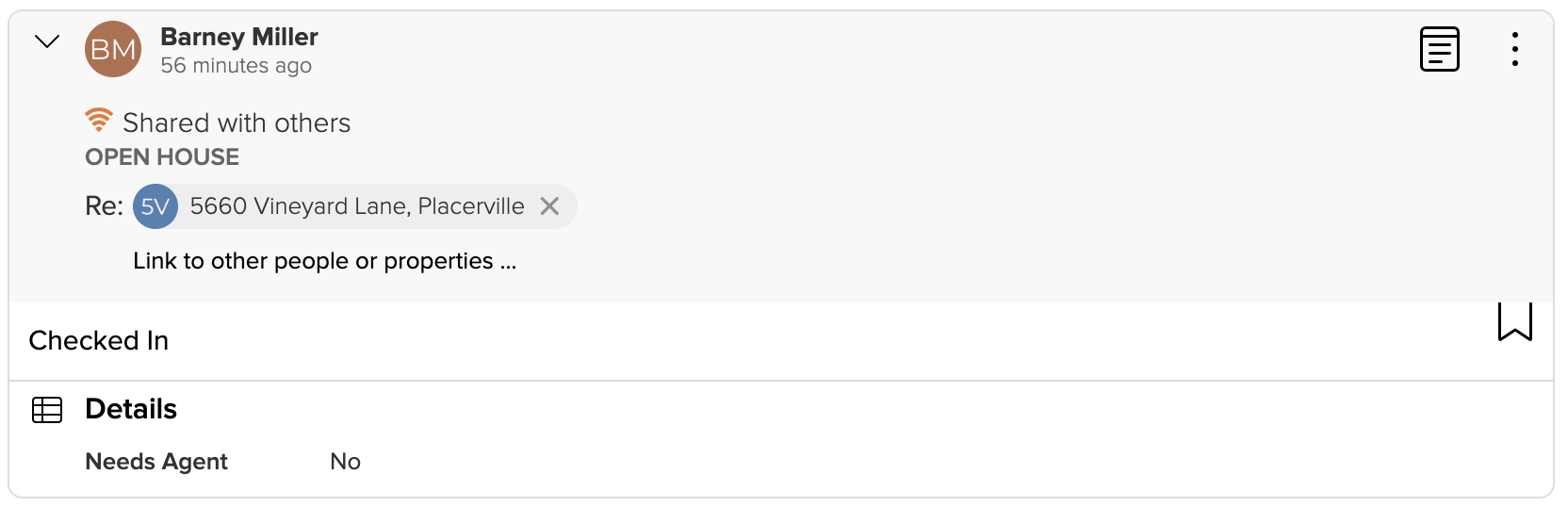
- Adds a contact with default segment "Buyer". If the client says they are not working with another agent, this also sets the person's Stage to "Warm" (if an agent is already represented, we will not set the Stage as "Warm").
- Adds an open house check in timeline event that links to the client and the property.
Buyer Feedback (Self Service Mode Only)
When "Buyer Feedback" is submitted, the existing timeline event will be updated with more information.