
How do I edit a personal email template?
Edit with the Email Composer
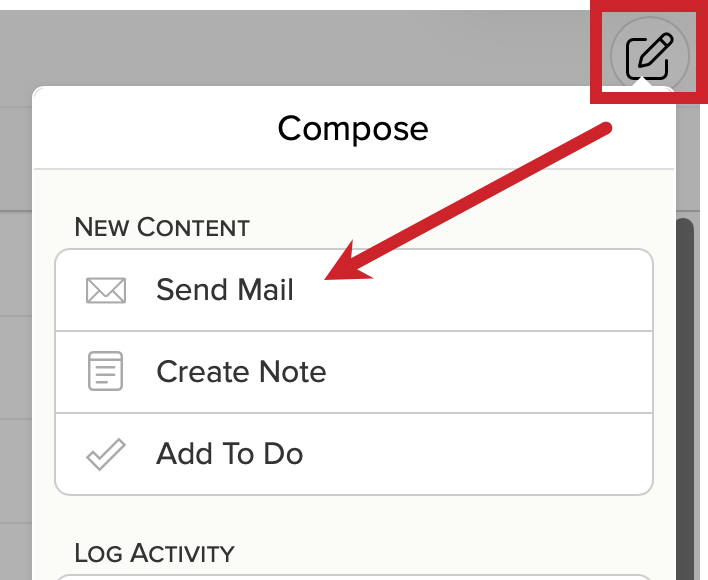
1.) Tap on the compose icon in the upper right and then tap on "Send Mail".
2.) Tap on the template icon in the lower right corner of the template composer.

3.) Search for and then tap on template you wish to use or make changes to.

4.) Make any updates to the email content and when you have finished making changes, tap on the template icon (bottom right) again.
5.) Tap on "Update" and that will save the changes you made to the template. When you go to use the template again, you will see your changes.

Edit in the Template Library
Depending on your customizations the Library may be accessible through the More (...) menu or you will see it directly along the left side of the screen (or along the bottom of the screen on a tablet).
If you want, you can filter the Library to only display Personal Email templates. Tap on the funnel icon and then select Personal Email.

1.) Tap on the template to open it and then tap on "Edit" or the pencil icon.

2.) Make your edits in the template and then tap on "Save".

Tapping on the dropdown menu next to "Save" will give you the option to save to other libraries or you can preview your template or send a test.
