How do I resend a previously sent listing email?
Branded listing marketing templates are available under the Market button > Send an Email. Templates are grouped under categories like Just Listed, Open House, Coming Soon, and others for quick access to specific designs.
If you've previously sent an email from your listing, you'll also see a category called Resend.

Every Mail Merge listing email you send is now saved like a template. Tweaks and all.
Changed the subject line? Added the open house time? Swapped in new photos?
Cloze saves it exactly as you sent it.
So the next time you go to market that property, you'll see a new category: Resend.
It's tied to the listing — and to the Mail Merge emails you've sent on it in the last 30 days. Pick your last send. Send it off again.
Important notes:
- Mail Merge emails sent within the last 30 days are shown.
- Only emails sent as a Mail Merge will be displayed in the Resend category.
- The list of previously sent Mail Merge emails in the Resend category is deduplicated by email subject (the most recent is shown).
- This feature was added to Cloze on June 22, 2026, so only emails sent on or after this date will be displayed in the Resend category.
1.) While viewing your listing in Cloze, tap on the Market button and select Send an Email.
- Navigate to your listing in the Properties section of Cloze.
- Tap on the Market button .
- Select Send and Email

2.) Tap on the Resend category and select the template you wish to use.
- Tap on the Resend category.
- Select one of your previously sent emails.

3.) Select who you would like to send to.
- Specific People: Mail specific people. Type the names in the TO line.
- Audience: Send to an audience you have created.
- Listing Match: Market your listing to agents who have sold similar properties in the past. Cloze Enterprise only. This option can be enabled by your brokerage.
- Tag: Send to one or more tags.

4.) Send your email.
Tip: Send a test email to yourself to ensure everything looks as you expected.
-
- Send Tap on the Send button to send your email.
- Send Options: Tap on the dropdown menu to select several sending options.
- Schedule: Set your email to send at a future date and time.
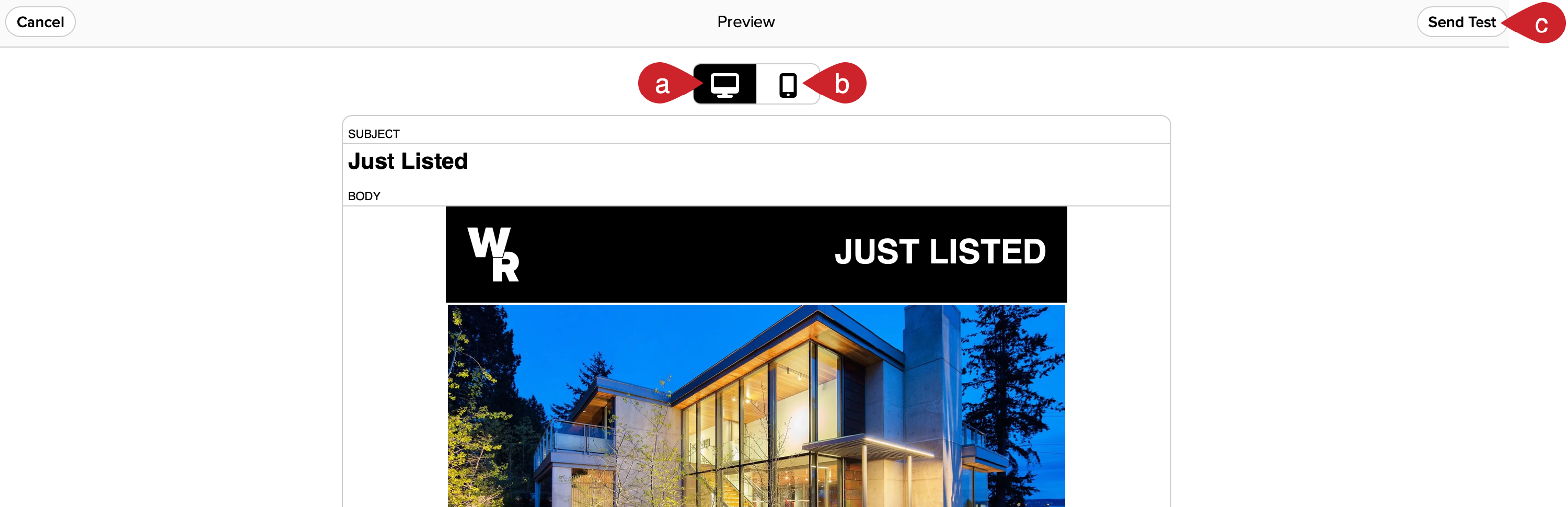
- Preview: Select the preview option to see what your email will look like when viewed by recipients. You can also send a test email to yourself.

Preview your email before sending
- Desktop: Preview your email on desktop.
- Mobile: Preview your email on mobile.
- Send Test: Send a test to review your email before you send it.